Review Workflows
Page summary:
Review Workflows define custom multi-stage pipelines for content review, facilitating collaboration from draft to publication. This documentation walks through creating workflows and assigning stages.
The Review Workflows feature allows you to create and manage workflows for your various content-types. Each workflow can consist of any review stages for your content, enabling your team to collaborate in the content creation flow from draft to publication.
Configuration
Path to configure the feature: Settings > Global settings > Review Workflows
For the review workflows to be usable in the Content Manager, the default one should be configured or a new one should be created.
The default workflow is configured to have 4 stages: To do, In progress, Ready to review, and Reviewed. All 4 stages can be edited, reordered or deleted as needed, and it is also possible to add new stages.
Creating a new workflow
- Click on the Create new workflow button or on the edit button of a workflow.
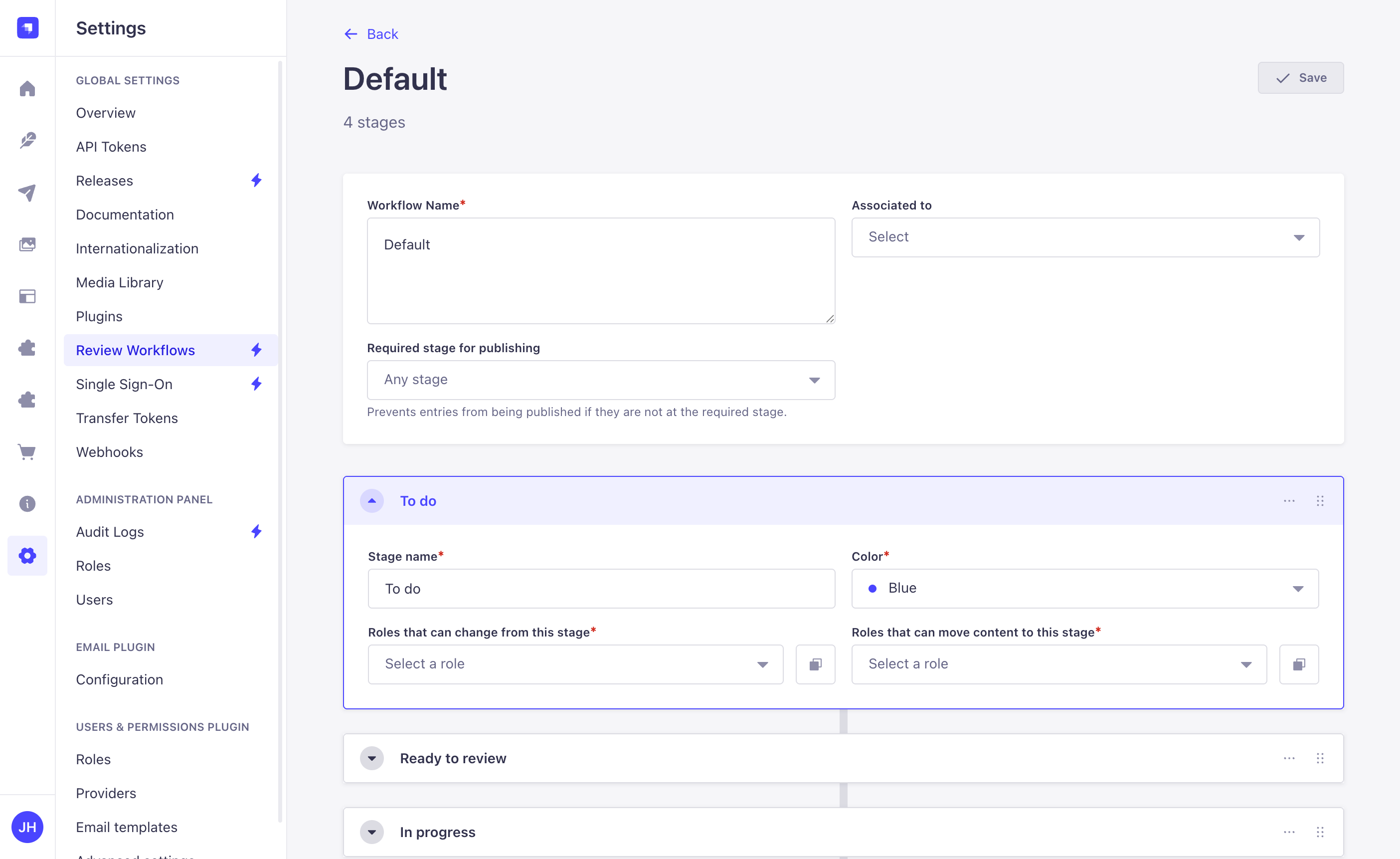
- In the workflow edit interface, configure the new workflow:
Setting name Instructions Workflow name Write a unique name for the workflow. Associated to (optional) Assign this workflow to one or more existing content-types. Stages Add review stages (see Adding a new stage). - Click on the Save button. The new workflow will be displayed in the list view and for every content-type assigned.
The maximum number of workflows and stages per workflow is limited.
Editing a workflow
Adding a new stage
- Click on the Add new stage button.
- Write the Stage name.
- Select a Color.
- Select Roles that can change from this stage, to define which roles can move content out of this stage.
- Select Roles that can move content to this stage, to define which roles can transition content into this stage.
- Click on the Save button.
By default new stages are appended, but they can be reordered anytime using the button.
Each permission field has its own "Apply to all stages" option, which copies that field's role selection to every other stage in the workflow. Alternatively, use "Duplicate stage" from the stage context menu to copy the entire stage configuration including both permission types.
Duplicating a stage
- Click Duplicate Stage in the context menu of the stage.
- Change the name of the duplicated stage.
- Click on the Save button.
Deleting a stage
To delete a stage, click in the context menu of the stage, then Delete.
If you delete a stage that has pending reviews, the reviews will be moved to first stage in the workflow. Every workflow needs to contain at least one stage and therefore it is not possible to delete the last stage.
Deleting a workflow
To delete a workflow click on the delete button of a workflow in the list view.
It is not possible to delete the last workflow.
Usage
Path to use the feature: Content Manager
Changing review stage
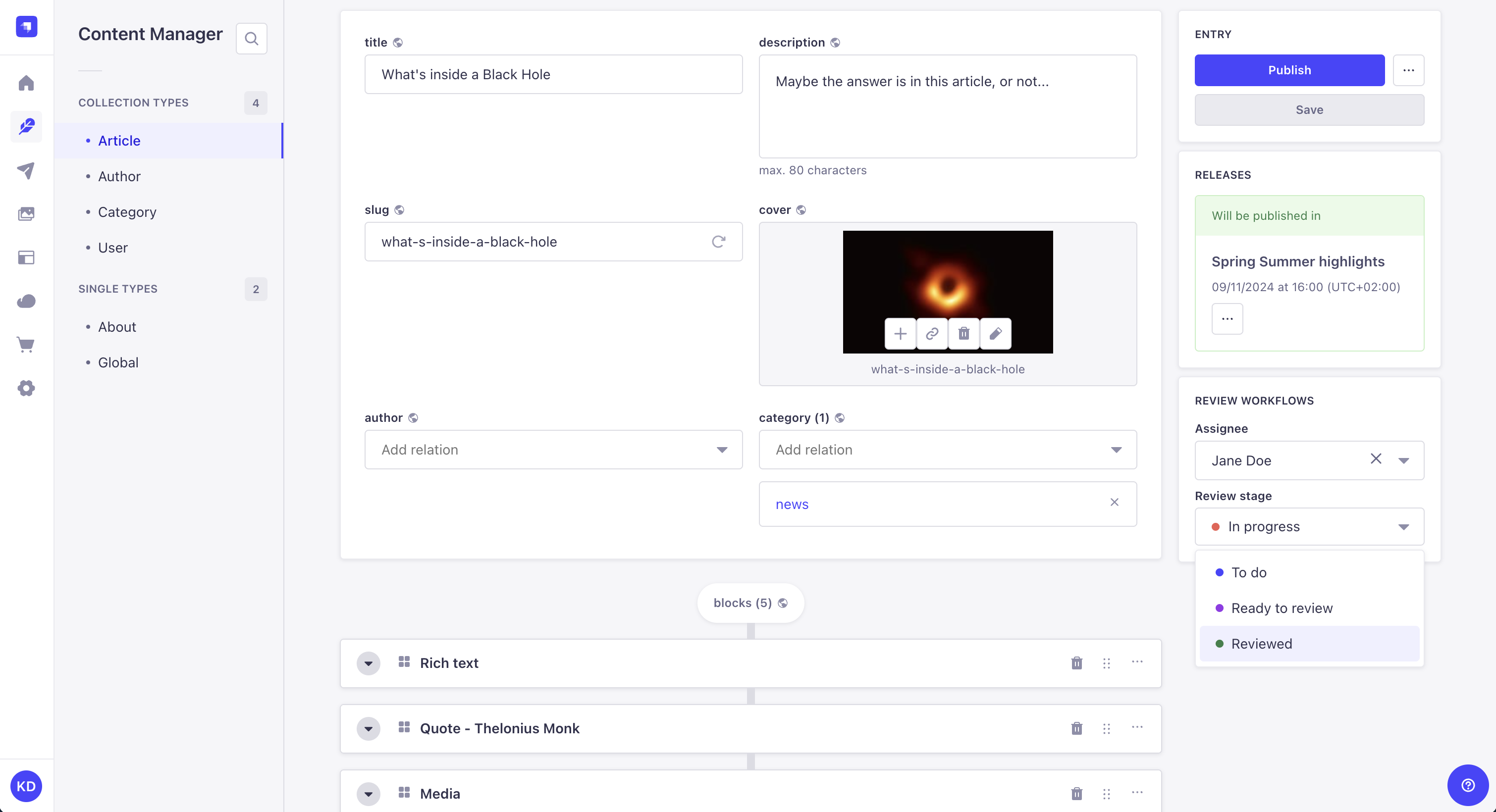
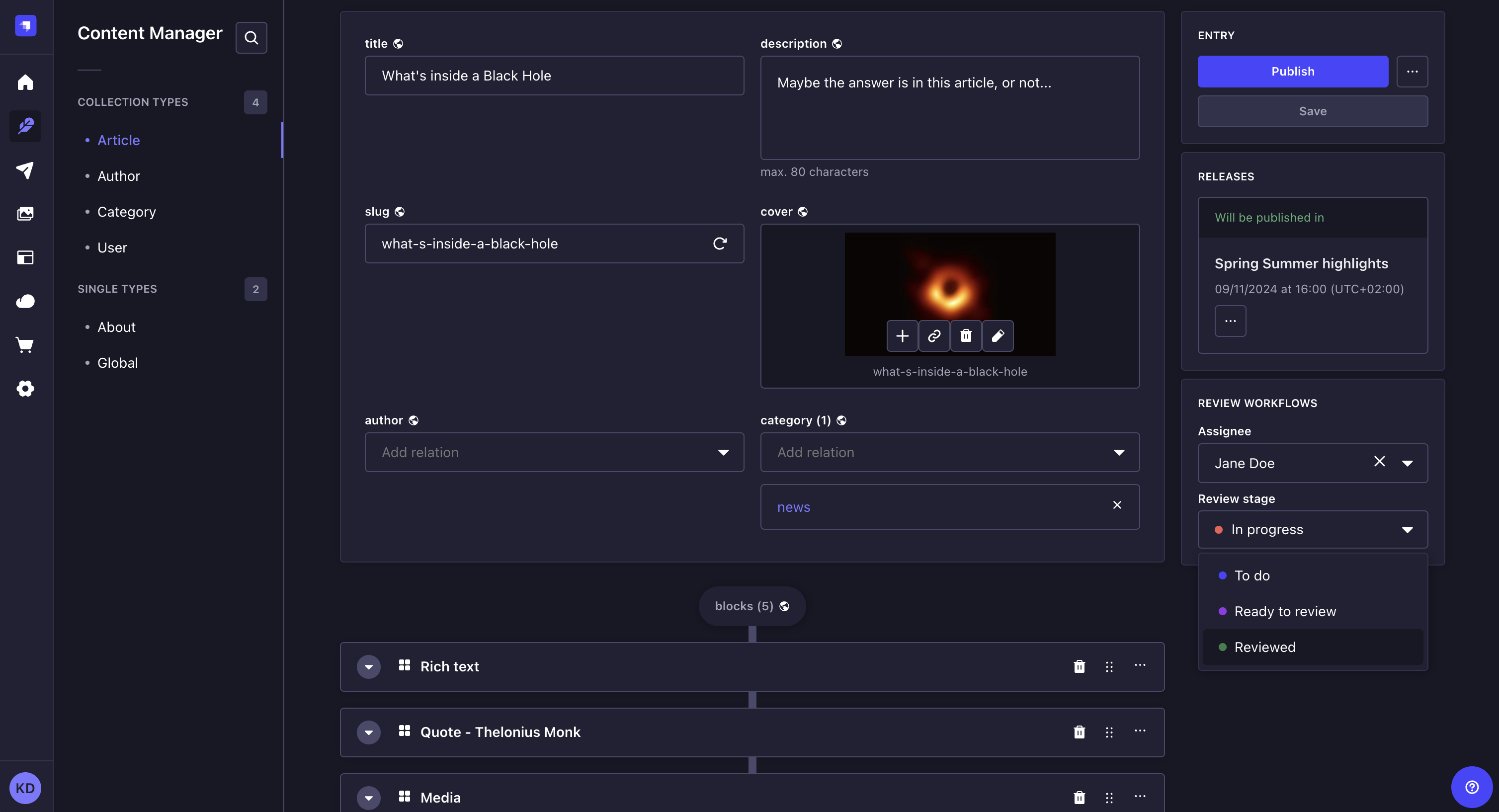
As content is created and revised among your team, you can change the review stage of the content. The available target stages in the dropdown depend on your role's permissions: you must have permission to move content from the current stage and permission to move content to the target stage.
- Access the edit view of your content-type.
- In the Review Workflows box on the right side of the interface, click on the Review stage drop-down list.
- Choose the new review stage of your entry. It is automatically saved.
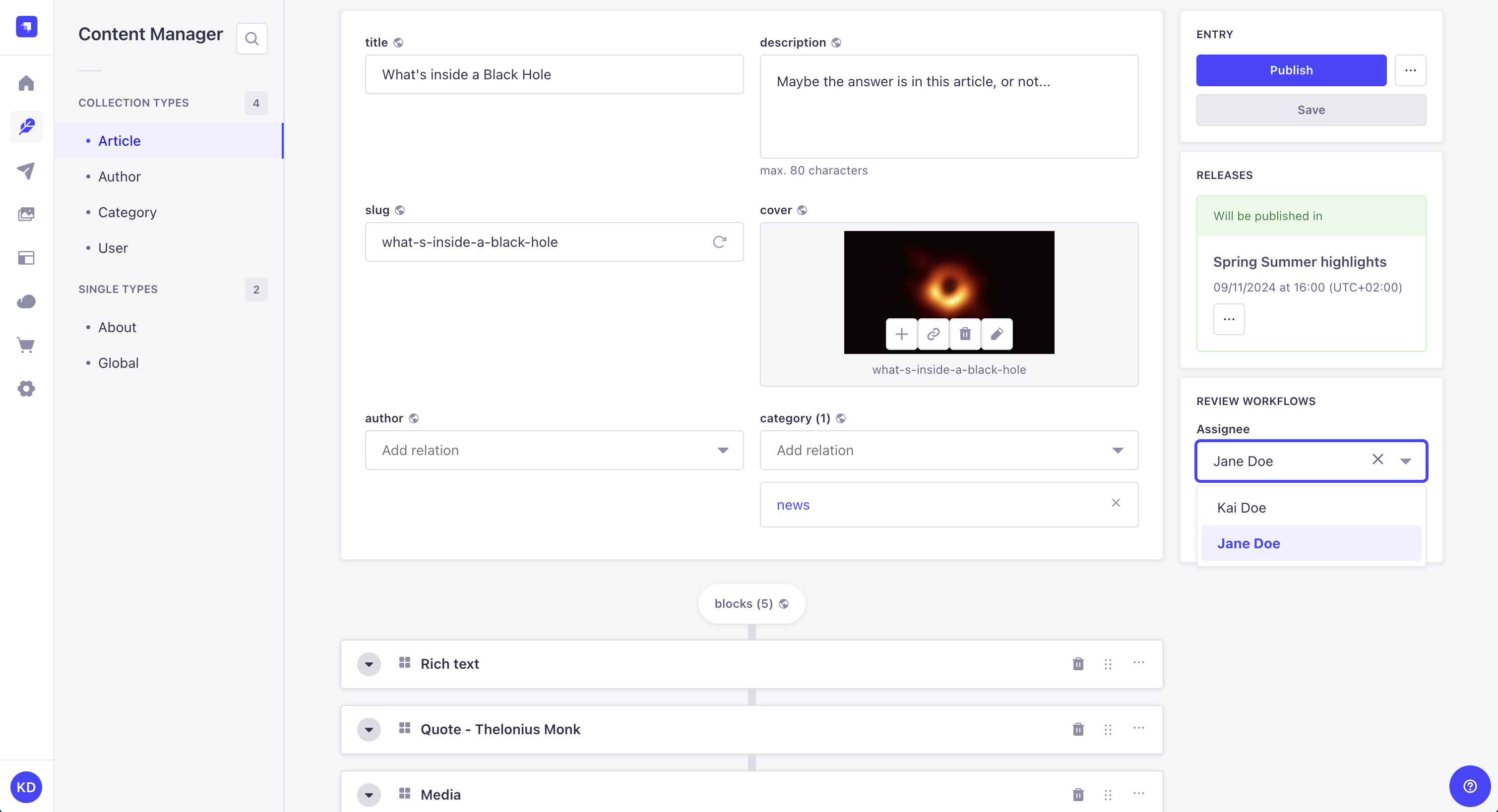
Defining assignee
Entries of a review workflow content type can be assigned to any admin user in Strapi for review.
- Access the edit view of your content-type.
- In the Review Workflows box on the right side of the interface, click on the Assignee drop-down list.
- Choose the new assignee of your entry. It is automatically saved.